NOR Symbol ⊽ (U+22BD): Copy, Meaning, and How to Type
Copy the NOR symbol ⊽ (U+22BD), learn its Boolean meaning and truth table, and use HTML, Alt, Word, CSS, and Unicode codes.
NOR symbol
The two-input truth table is straightforward:
A | B | A ⊽ B
0 | 0 | 1
0 | 1 | 0
1 | 0 | 0
1 | 1 | 0
The logical operation of “not or” is represented by the glyph ⊽, which you can insert in supported Windows programs by typing its hexadecimal code and then using Alt and X. It represents negated OR, called joint denial.
Copy the NOR symbol with this code point: U+22BD.
You may want to substitute it with a Peirce arrow (also known as the down arrow) if you’re working within a context that uses that symbol to represent the same operation.
This article shows you how to insert and display the ⊽ symbol into web pages and documents, both through HTML entities and in CSS stylesheets. You’ll also learn about the different ways Windows users can type the symbol directly on their keyboards, either by pressing the Alt key along with the correct hexadecimal number or by typing its ASCII code. If you don’t have access to Windows, there are still several options you can use.
There are also many programming languages that let you use Unicode characters such as the ⊽ symbol, whether from a file or directly from a string variable. These include JavaScript, Java, Python, and others.
When copying this symbol, though, it’s possible that it might come back to you looking like a replacement character, an empty box, or just some random characters. The issue usually lies with the way the encoding has been handled at one of the stages of copying, editing, replacing, or pasting, but not always. In particular, sometimes the problem is simply that your font doesn’t support the glyph itself, or perhaps that your software application does not support Unicode symbols.
Finally, we’ve included some examples for developers who need to work with this symbol within their source code. But remember, you can always copy it directly, too, instead of using an entity or escape sequence. Use whichever method makes most sense for you and for your current project.
Inserting the ⊽ Glyph Into Web Pages
HTML provides several methods for inserting the ⊽ glyph:
Many browsers also accept the named entity ⊽ inside an HTML document, though the numeric references below are the safer cross-version choice.
For earlier versions of HTML, you can use the numeric entity reference, which consists of the & symbol, followed by a # sign, then either a decimal number or hexadecimal equivalent of the Unicode code point (8893), and ending with a ;.
Here are the various references you can use in your code:
Entity Name
⊽
Decimal Entity
⊽
Hexadecimal Entity
⊽
To display the ⊽ symbol in an inline style sheet, you can add the following CSS rule to your code:
span::after {
content: "\22BD";
}
You can also use the hexadecimal HTML entity directly, using the syntax below:
<p>⊽</p>
The following table lists the UTF-8 bytes for the ⊽ symbol:
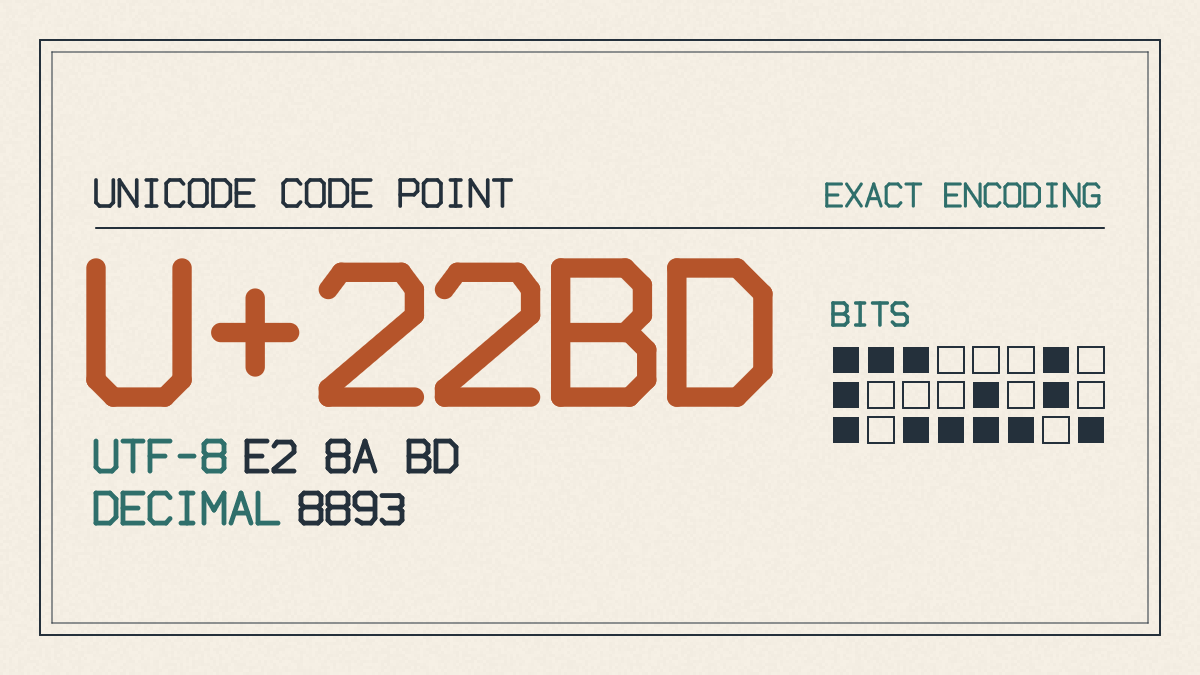
Unicode Code Point
U+22BD
UTF-8 Encoding
E2 8A BD
How to Insert the ⊽ Glyph Into a Microsoft Office Document
Windows includes several shortcuts that allow you to type almost any symbol directly into your applications, including those that appear in Microsoft Office. One of these methods requires that you know the Unicode code point for the symbol you want to type.
In order to use this method, type the corresponding hexadecimal code point, as follows:
22BD
Then, press Alt and X together. The code should convert into the ⊽ symbol.
If you have a numeric keypad, turn on Num Lock, hold down Alt, and enter the decimal value using the keypad:
Alt +8893
Type the Symbol Using the Windows Character Map Utility
Windows also includes a utility known as the Character Map program, which allows you to easily insert any symbol into a document, without worrying about whether or not you have access to all of the necessary shortcut keys to do so.
Open up the Character Map utility, locate the symbol you want to use, and then click Select to copy it to the Clipboard, and then paste it into your document. You can also use this utility to determine what kind of glyphs are available to you depending on what font you are currently using.
Typing the ⊽ Glyph With JavaScript/Java Style Syntax
Many developers prefer to use Unicode characters rather than trying to find alternative replacements. This means that you should ensure that your files are encoded correctly in order for them to display properly. If you are working with a language that supports Unicode, you can type the symbol directly, either as a variable or from a file.
Here are some examples of the ⊽ symbol typed directly into a JavaScript or Java-style source file, which are shown here with Unicode handling:
JavaScript
document.write("\u22BD");
Java
System.out.println("\u22BD");
Python
print(u"\u22BD")
The final thing to consider is the font in which your text will appear. Although your editor might render your source file correctly, your target system or browser might not recognize the ⊽ glyph at all.
Other Ways to Insert Symbols Into Your Files
You may choose to work around the potential problems associated with using a Unicode character by using an entity or an escape sequence. If you do decide to use an alternate representation, be sure to select one that is commonly used within your industry, particularly if you’re creating documentation or technical manuals.
Why You Might Encounter Problems When Copying the ⊽ Symbol
Unfortunately, sometimes when you go to copy and paste the ⊽ symbol, you may not end up with what you expect. This is often because of how the encoding has been handled. For example, your file might be set up to encode the symbol correctly, but during one of the steps — copying, editing, replacing, or pasting — the encoding was lost, meaning that the character will no longer display correctly.
In fact, one common reason you will see a problem with the ⊽ symbol is when the encoding is incorrect, which could result in displaying the ⊽ symbol as either a question mark, some random character, or an empty box. However, the reason for the error isn’t always that your font doesn’t support the symbol. It could simply be that the program you’re using doesn’t support the shortcut or symbol at all, especially if you are using an older version of Windows.
Finally, there’s another possibility, and that is that you are using a symbol substitution option that replaces symbols that your software doesn’t support. If that is the case, you will likely encounter the ⊽ symbol displayed as a replacement character, which may look like a question mark, or it may even be represented as a blank square. In other words, if you don’t have the appropriate font installed on your system, the ⊽ symbol will show up as an empty box.
Which Option Is Best?
At the end of the day, however, there are several options available to you. You can choose to type the ⊽ symbol directly using either the Alt key or the Character Map utility, as long as you know what you are doing. If you don’t have access to those utilities, you can also use the corresponding ASCII values to help you out. Alternatively, you can also create a new file and save it with the appropriate settings, ensuring that it displays correctly.