Copy the Double Dot O Symbol ö/Ö and Type It in Word for Windows
Copy the double dot o symbol ö or Ö, identify its Unicode code point, and learn documented shortcuts for typing it in Word for Windows.
Microsoft's Word provides several ways to enter the double dot o symbol, such as the lowercase ö (o with a diaeresis). This article discusses all of the ways you can do so, both with and without the numeric keypad on your keyboard.
Copy the double dot o symbol
You can copy the lowercase ö or uppercase Ö character from this article and paste it into a document that you are currently working on. The Unicode names of the characters are:
ö — U+00F6 — LATIN SMALL LETTER O WITH DIAERESIS
Ö — U+00D6 — LATIN CAPITAL LETTER O WITH DIAERESIS
The two-dot letter is known as an umlaut, but some languages use the same diacritic mark with a different function. For example, Hungarian uses o with a double acute accent (ő), distinct from ö, to denote a distinct sound, while the o with a stroke (ø) is also different from ö.
Typing ö and Ö without a numeric keypad
There are at least two documented methods of typing the ö/Ö letter in Word, which require no numeric keypad at all. The first method involves pressing a Ctrl+Shift key combination and then pressing the appropriate case-sensitive letter. Here’s how to do that:
Press Ctrl+Shift+: and then release these keys. Press o, and the letter should become ö.
If you prefer uppercase, press Ctrl+Shift+: and then release these keys. Press the uppercase O, and the letter should become Ö.
Alternatively, there is another way: Type 00F6 using your ordinary keyboard, then press Alt+X. If you don’t have a separate number pad on your laptop, you can still follow the instructions for the menu option shown below.
You’ll need to be using Microsoft Word for Windows, not for macOS or Linux. That said, the following applies to the Windows version of Word for Microsoft 365, Word 2024, Word 2021 and earlier. The instructions below were taken directly from Microsoft’s documentation of Word for Windows.
Using the numeric keypad
You might not know that you can use the numeric keypad to enter special characters. There are two options here: the hexadecimal code and the decimal code. Only the decimal Alt code requires a numeric keypad; the hexadecimal code can be typed using your ordinary keyboard. Both involve using the Alt key in conjunction with either a hex or decimal number.
For the hexadecimal code, simply enter 00F6 before you type anything else. When you complete this, press the Alt key and then X to convert the hex code to its corresponding character. The result will be ö.
To create an uppercase Ö, use the hexadecimal value 00D6. You’ll repeat the process as outlined above.
You’ll probably find that the decimal code is easier than the hexadecimal code. For the decimal code, hold down Alt while you enter the correct code on the numeric keypad, then release Alt to generate the character.
Here are the codes for the two versions of the ö/Ö symbol:
Decimal code: Alt+0246 → ö
Alt+0214 → Ö
You’ll need to use the numeric keypad on your keyboard to enter the decimal code. You may need to turn on the Num Lock light on your keyboard to make sure that the keypad functions properly. Again, hold down Alt while you enter the decimal code on the numeric keypad, then release Alt to produce its corresponding letter.
Insert the character through Word’s menus
Word’s menus provide a workaround for those who lack a numeric keypad on their laptop. Insert > Symbol > More Symbols will allow you to choose between several different versions of the ö/Ö symbol. This method is documented for Word for Microsoft 365, Word 2024 and Word 2021 on Windows.
In terms of Unicode, the lowercase letter can have canonically equivalent precomposed and decomposed representations, depending on how your software handles normalization. For instance, the precomposed form of the ö symbol is U+00F6. Its decomposed counterpart is represented by the sequence of U+006F (base o) and U+0308 (combining diaeresis). These two forms are regarded as canonically equivalent in Unicode.
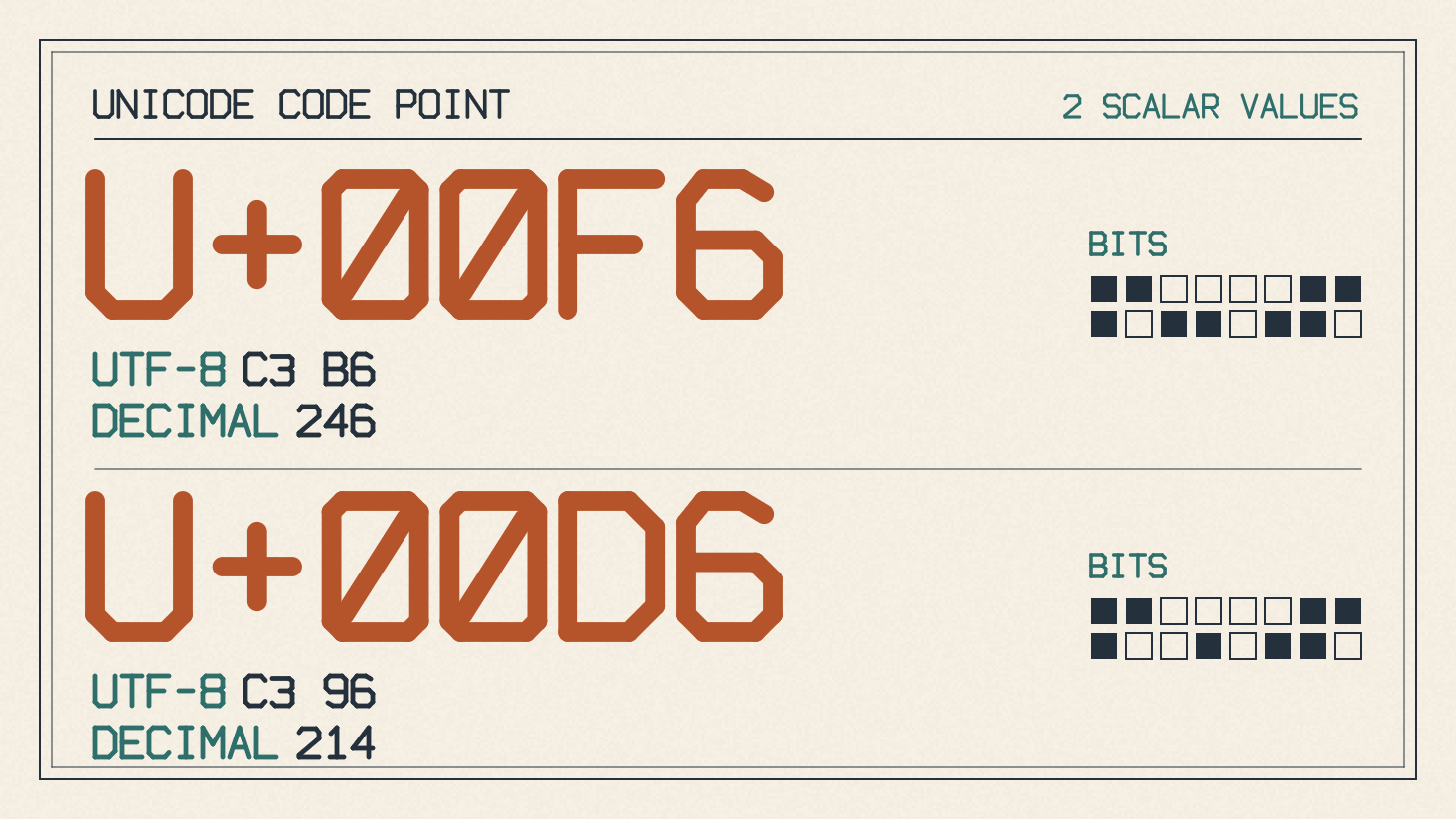
The decomposition of the ö letter represents a difference in the sequences of code points that make up the two representations. For software to treat these canonically equivalent sequences identically, it may need to normalize the strings or otherwise account for canonical equivalence. As long as the text search, sort and comparison are consistent, users won’t even notice that different sequences are used.
However, you might want to normalize the text if you’re concerned about performance. Some people claim that normalizing a large body of text could cause a significant overhead in processing speed. While I’ve never heard of anyone experiencing this issue, I suppose it could happen. Otherwise, you should be fine using the default settings in your software.
Replacing ö under technical restrictions
Finally, the final method depends upon language. For example, in German, an “o-umlaut” can be represented as oe if you are restricted to ASCII characters. But in Finnish, it is acceptable to replace the ö with just o when certain technical restrictions apply.
So far, this article describes how to input the lowercase ö or uppercase Ö character in Word for Windows, using three methods: one requiring your numeric keypad; another allowing you to avoid it entirely by typing the letter combination; and finally, another that allows you to select the desired character through the menu system.