What Is Bullet Point Format? Examples and Punctuation
What is bullet point format? See how • marks unordered lists, with examples, indentation guidance, and capitalization and punctuation choices.
Bullet point format is a simple method for presenting lists, where vertically arranged items appear with a marker before each one. The most common bullet symbol is • (U+2022), although any text character could be used. An example from an original packing-list would read something like:
-
notebook
-
pen
-
charger
With literal bullet characters, you’d write:
• notebook
• pen
• charger
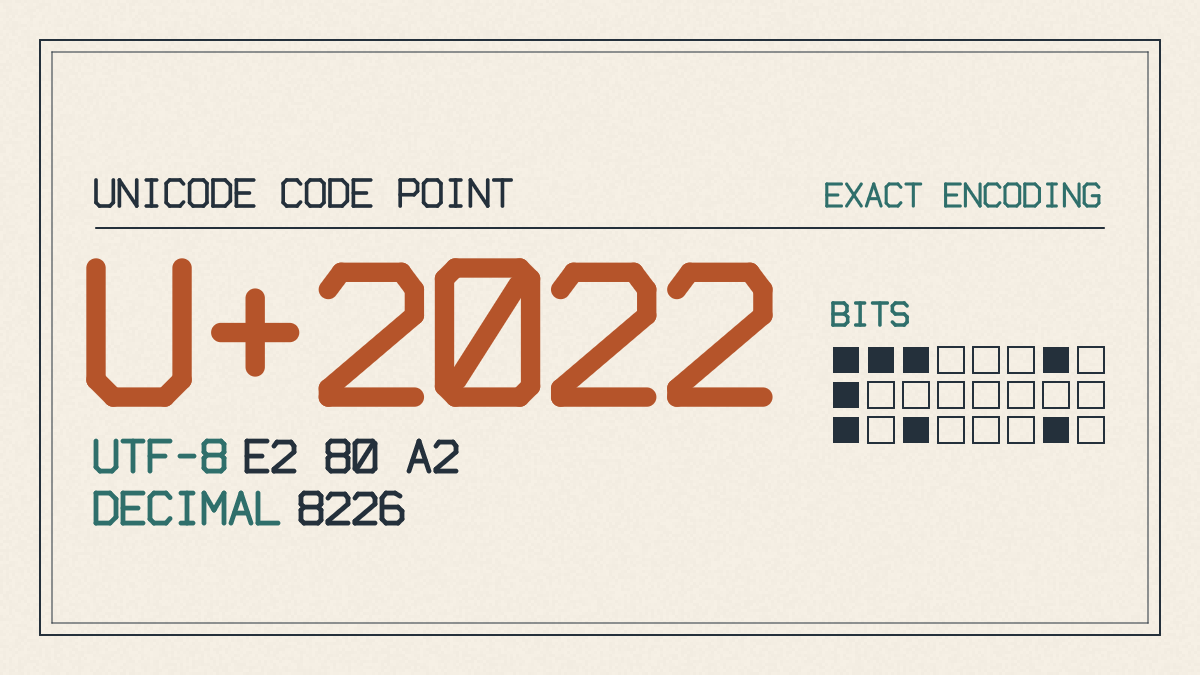
The above list uses the symbol followed by a space between the bullet and the item’s text, but you’ll find that some styles use the two together without a space or with other spacing.
Bullets and numbered steps
You can compare related items in a similar fashion, although instructions typically have a required sequence, such as this sample list of steps:
-
Start the car.
-
Apply the parking brake.
-
Put the car into park.
In contrast, bullets simply represent unordered items. In such cases, action verbs alone do not require numbering: “start the car,” “apply the parking brake,” and “put the car into park” are all actions that you perform to get your car out of the driveway. In fact, if you were to number them, you’d be using numbers rather than bullets.
Converting a paragraph into bullet points
Converting an original paragraph into concise, related bullet points requires both a lead-in sentence that applies to every item on the list and a contrast between matching noun phrases and matching actions. Let’s convert our original paragraph:
Packing a suitcase requires a few basic items. You need a notebook, a pen, and a charger to complete your preparations. A good travel bag is also essential.
to this version:
Packing a suitcase requires a few basic items: pack a notebook, add a pen, and include a charger to complete your preparations. A good travel bag is also essential.
You could lay it out like this:
To complete your preparations:
• pack a notebook
• add a pen
• include a charger
In the latter case, each bullet begins with a verb that corresponds to its noun phrase, which matches the introductory stem: “pack a notebook,” “add a pen,” “include a charger.” The verb “include” works better here because the last of the three items was a more general item, “a charger.”
Lead-in sentences and parallel items
Introductory conventions differ slightly when dealing with business writing versus when using lists within text. When you create a list after a heading, follow your chosen style’s conventions: ONS uses no lead-in sentence and requires each bullet to begin with a capital letter and end with a full stop. But when using a list inside a paragraph, a lead-in sentence is required, and you must ensure consistency in how you apply punctuation, especially periods and colons.
As noted earlier, the example we used originally included the following elements:
-
Notebook
-
Pen
-
Charger
Parallel nouns: a notebook, a pen, a charger
Parallel actions: pack a notebook, add a pen, include a charger
Instructional Solutions
There are several practical solutions to the problem, depending upon what you’re trying to achieve. Contextualizing the lead-in line applies to every item. In business writing, however, you’ll usually see a colon at the end of the introductory stem, as opposed to a comma, since the colon introduces a clause. In lists within text, such as the ones provided by ONS, the difference between a list within text and a list following a heading becomes important. In those examples, the bullets follow directly after a heading or subheading, without a lead-in line. There’s no need for a separate lead-in line.
Indentation and sub-items
Continuation lines are aligned with the text of the item, and sub-items can be placed deeper in the list to express their relationship to the parent item. Hanging indentation describes the way that the first line of a paragraph appears farther left than subsequent lines, and continuation lines describe the alignment of text with the rest of the paragraph’s text. In addition, you may want to place supporting information beneath an item; this is sometimes referred to as a sub-item. Microsoft documents how to use Word for Windows to adjust the indentation and hierarchy of such lists. You can set the bullet position and text indent separately, and change an item’s level through the Multilevel List menu. For example:
• Pack a notebook with enough pages
for your travel notes.
◦ Keep a pen with it.
Capitalization and punctuation
You may prefer a list that contains complete sentences instead of short inventory phrases, offering another opportunity to use capitalization and periods. However, there is a convention that allows you to capitalize only the beginning of each item and skip ending punctuation. Just ensure that the entire list remains consistent. For example, you might write the following:
Start your car. Apply the parking brake. Put your car in park.
Or, you could choose the shorter inventory form:
• notebook
• pen
• charger
Instructional Solutions recommends capitals and periods for complete sentences, such as “Pack a notebook.” For short fragments like these, you can omit punctuation.
Start the car.
Apply the parking brake.
Put the car into park.
The choice comes down to house style, though the second option is more likely to be seen in print. Note that lowercase fragments, with appropriate capitalization of proper nouns, are commonly found at the start of ONS lists within text. These lists don’t normally end with a period, including after the final item.
Literal bullets and editable lists
You should distinguish between a literal text bullet and an editable list. If you’re inserting a bullet character in Word and choosing the Bullets command, you’re actually creating an editable list that will automatically change formatting as you edit. On the other hand, if you just insert a bullet manually — using the existing copy tool, for instance — you’re inserting a literal Unicode character rather than an image. If you’re looking for a new character, click Insert → Symbol.
Sources
- Bulleted Lists 101: When, Why, and How to Use Them
- How to Correctly Punctuate Bullet Point Lists in Business Writing
- Bullet points and numbered lists – Content style guide – Service manual – Office for National Statistics
- Change bullet indents in Word | Microsoft Support
- Create a hanging indent in Word | Microsoft Support