Bullet Point Alt Code on Windows: How to Type • With Alt+7 or Alt+0149
Learn the Windows bullet point Alt code for •, including Alt+7, Alt+0149, Num Lock and numeric-keypad requirements, plus copy-paste alternatives.
When you insert the standard filled bullet in ordinary text, you have a couple of choices when it comes to typing the symbol itself. You can type it with Alt+7, or you can use Alt+0149. While they’re both correct, choosing one over the other matters if the exact character identity is important.
Typing an Alt code on Windows
On most keyboards, the numeric keypad is on the right side of the keyboard. The numeric pad also has some extra keys: Num Lock (to turn the numberpad on and off), as well as additional keys for entering characters. If you’re not using your numeric keypad, you may not be able to enter Alt codes at all. (If you are using the numeric keypad but it isn’t lighting up, check that you’ve enabled Num Lock.)
To type an Alt code, press and hold the Alt key on your keyboard. Then type the code number on the numeric keypad. Release the Alt key after you finish typing the code. That’s how you type any Alt code on Windows: Enable Num Lock, hold down Alt, type the number, then release the Alt key.
The bullet point alt code
You can type the standard filled bullet by pressing Alt+7 or by pressing Alt+0149. Either will give you a bullet point — although, like so many things in computing, there’s a lot more to know about the symbols themselves. For example, the Unicode Standard lists the character as U+2022, “bullet,” also known as the Bullet Dot.
There are other Unicode glyphs that look similar, too. There’s a larger symbol, which looks just like the filled bullet except larger. And there’s also the mathematical version, ∙, which is used in mathematics and logic.
In short, don’t confuse these different glyphs. Although the two Alt shortcuts above commonly produce a bullet in ordinary use, there are other alternatives.
Using Alt+7 vs Alt+0149
It might help to understand why either Alt code works. The first shortcut, Alt+7, is the low-number Alt code commonly listed for the bullet symbol; it isn’t the decimal value of U+2022. (That Unicode value would be 8226 in decimal, and Unicode code points can’t simply be typed that way with the basic Alt-code method.) The second, Alt+0149, is a familiar code that produces a bullet point in many Windows apps.
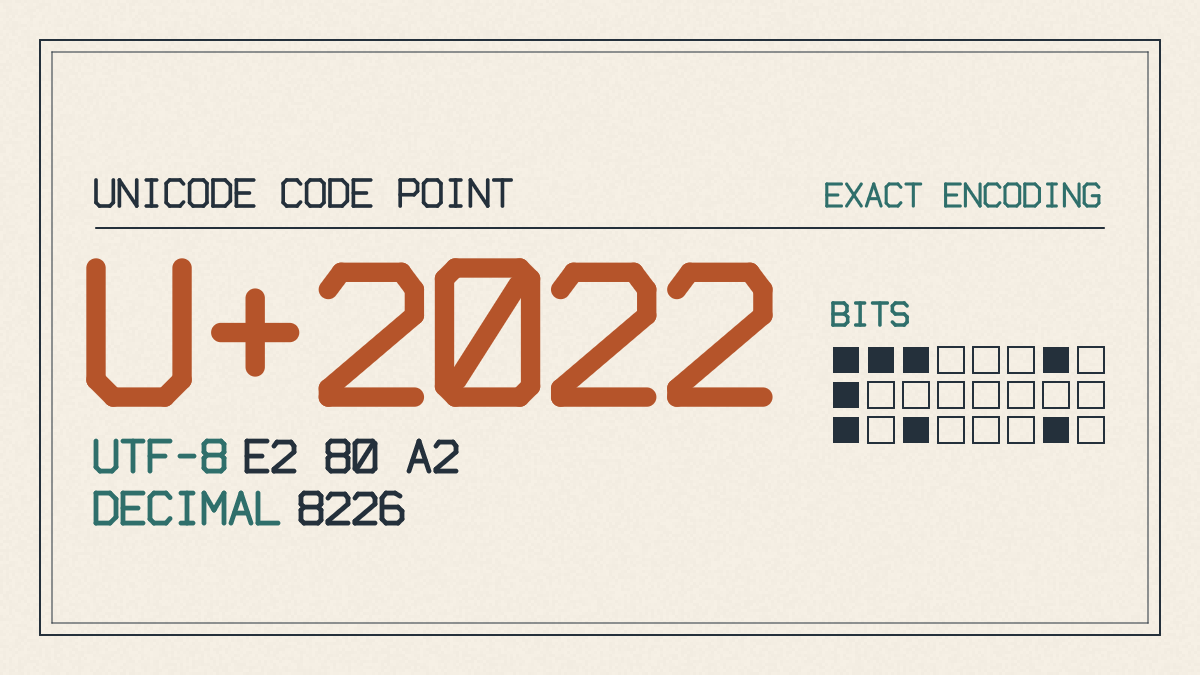
In many ordinary Windows programs, either shortcut will give you a bullet. But it helps to remember which shortcut you used and to check the inserted character if its exact identity matters. If you’re working with an application that depends on the exact Unicode identity of the character, you might want to verify that what you see matches exactly what you expect. Otherwise, it’s probably safe to rely on the Alt+0149 shortcut.
Nearby low-numbered Alt codes
There’s another trick to avoid confusion. You can type a nearby Alt code and then reverse it back again. These include:
Alt+8: ◘ (Reverse bullet)
Alt+9: ○ (Empty bullet)
Alt+10: ◙ (Reverse bullet)
These won’t give you the standard filled bullet; they’re nearby symbols you can use if one of those shapes is what you meant. If you accidentally pick the wrong glyph, this can be handy to check.
A fallback path
If you’re not able to use the Alt key, or if your program refuses to take the Alt code you typed, you can still copy and paste the bullet point from a symbol page.
Copy the bullet and paste it into your target document or email. (Just make sure that you copy it directly into the message body and not into the address field, etc., otherwise your e-mail client might automatically modify the content.) Alternatively, drag the symbol from the symbol sheet and drop it into your text.
Otherwise, it’s worth trying Alt+7 or Alt+0149 and checking what your application inserts. When the shortcut doesn’t work, the copy-and-paste route is the dependable fallback.