Copy the Square Bullet Point Symbol ▪ and Compare ■ and □
Copy the square bullet point symbol ▪, identify U+25AA, compare ■ and □, and learn the documented insertion method in Word for Windows.
When you need a small filled character to copy, such as for use in a plain-text list, consider using the square bullet point symbol (▪; U+25AA; Black Small Square). This is an alternative way of describing the use of a marker. In fact, there are several other alternatives, including both filled and hollow versions.
The square bullet point symbol is typically used in a bulleted list, though it can also be used as a decorative item in a document or design. There are many variations of the bullet point that may appear in your document, depending on the font you’re using. For example, in Microsoft Word, the following symbols are available:
▪ — Black Small Square
■ — Black Square
□ — White Square
In this article, I’ll explain how to insert these characters, what they mean, and when you should use them. The Unicode standard provides documentation about how to insert these characters into a variety of platforms, such as desktop Word for Windows, macOS, or iOS devices. Unfortunately, if you don’t have access to a specific keyboard layout, it’s unlikely you’ll see a key labeled “■” or “□,” although some special keyboards do offer such keys. Otherwise, you’ll need to manually type out the sequence required by Unicode to add them to a page.
Unicode Insertion Sequences
The Unicode conversion sequence uses code points rather than characters, which can be confusing at first. However, each code point represents a specific Unicode character. Microsoft documents this method for desktop Word for Windows, and its shortcut documentation assumes a US keyboard layout. For instance, to add the square bullet point character, you would type 25AA where the character belongs. Once the code is in place, select just 25AA before pressing Alt+X, which will convert it into its corresponding character: ▪.
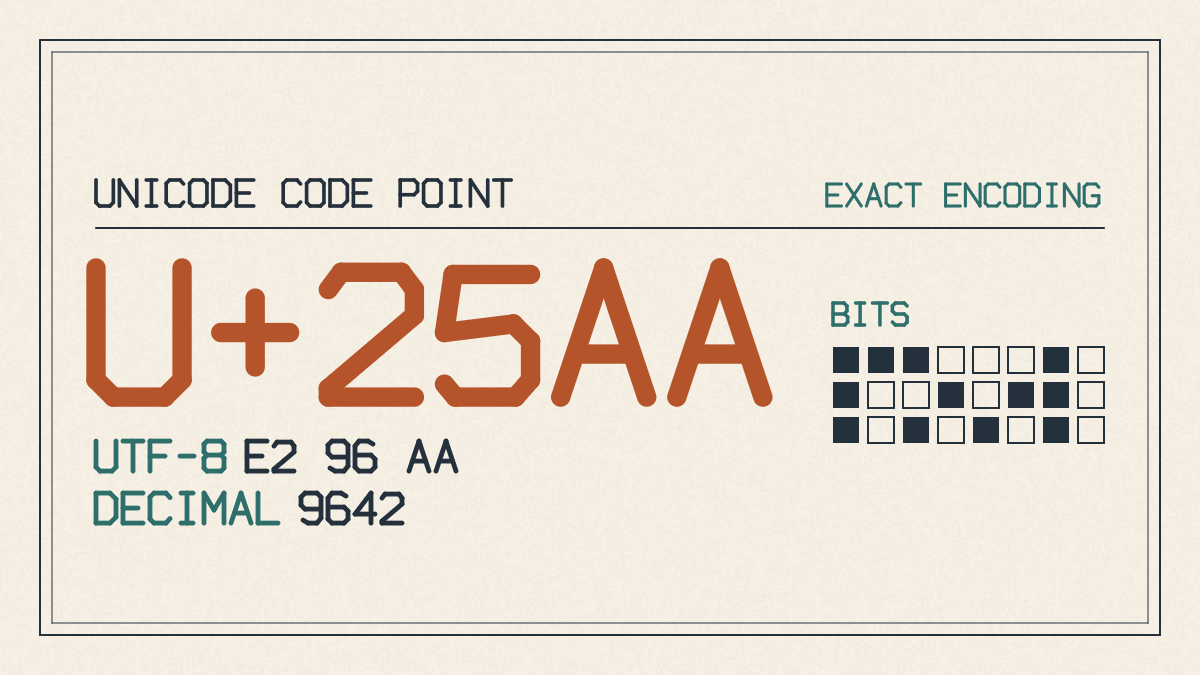
If the code appears immediately after another character, be sure to select only the code before converting it. If you don’t, the preceding character will likely be converted as well. Also, remember that adding a character from the keyboard input method doesn’t always equate to applying a formatting command to apply the character. As such, if you press Ctrl+Shift+L to add a bulleted list, this adds the default bullet to all items in the list, but doesn’t affect any text outside of that range.
There are two HTML representations of the same small square character: the decimal representation and the hexadecimal representation. Both markup options define the same Unicode character, so choosing one over the other doesn’t matter. It simply depends on whether the user prefers using numbers instead of letters.
Decimal HTML Representation
As with most markup language, you can choose to represent the character as either a decimal number or a hexadecimal number, which represents the same Unicode value. Again, the choice between the two comes down to preference. Decimal representation involves using digits, while hexadecimal uses base-16 numerals.
To create the square bullet point symbol as a decimal number, you would write:
▪
The equivalent is represented as:
▪
Hexadecimal Representation
For the hexadecimal version of the square bullet point symbol, you would write:
▪
You can enter the hexadecimal code in a web browser’s source code by using ▪. This means the code is not entered directly, but interpreted as the hexadecimal version of the Unicode code point.