Big Middle Dot Symbol “Black Large Circle” Using Alt in Word
Type the big middle dot symbol ⬤, Black Large Circle, with 2B24 then Alt+X in Word for Windows, and understand the limits of Alt+11044.
Word’s Unicode character conversion is a bit different than you’d think.
Microsoft Word for Windows has several ways to insert a symbol, such as the Unicode BLACK LARGE CIRCLE (U+2B24). For example, you can use Word’s Insert > Symbol dialog box and find it there. But what if you don’t want to use the Insert menu? Or what if you’re using another application that doesn’t have Unicode built-in?
You may be able to use Alt+X to convert hexadecimal Unicode values to characters, but not all applications support this.
There are a few methods of inserting characters into your document, including those that rely on special codes. One approach is to use an Alt code; another is to copy-and-paste the symbol itself. In some situations, both options will work.
In other situations, neither will work.
Unicode and ASCII
The BLACK LARGE CIRCLE is a Unicode character, which means it is defined by the Unicode standard. Unicode uses a 16-bit code value to identify a given character.
ASCII (which stands for American Standard Code for Information Interchange) defines a subset of the Unicode standard, or rather, a small part of it. However, because most people are more familiar with ASCII than Unicode, they’ll often refer to ASCII codes when talking about characters. But Unicode isn’t ASCII, and not all Unicode characters will be found in ASCII.
For example, the middle dot, is represented by ·, or U+00B7. The bullet symbol, sometimes called the black circle, is • (U+2022). A full-size black circle is ● (U+25CF), and the large black circle is ⬤ (U+2B24).
These four symbols are sometimes confused. So I’ll take time to distinguish them.
How to insert Unicode via Alt+X
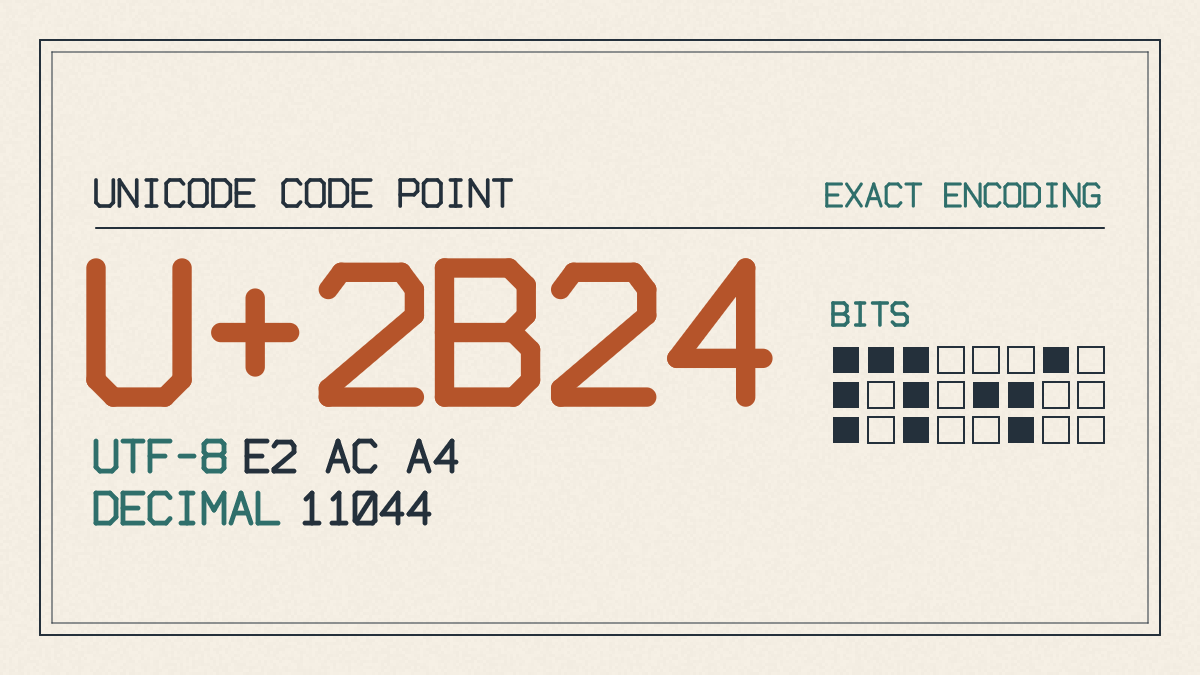
One method for inserting Unicode characters involves typing the hexadecimal code normally and then pressing Alt+X. That is, you type the hexidecimal representation of the Unicode character and then press Alt+X. For example, typing 2B24 at the desired location and pressing Alt+X inserts ⬤ (the BLACK LARGE CIRCLE).
If you type the hexadecimal Unicode representation immediately after another character, select just the code before pressing Alt+X. Otherwise, Word might misinterpret the result.
Another thing to remember is that the Alt key alone won’t convert the hexadecimal code; you’ll need to hold down Alt while pressing X. Also, you won’t be able to use this technique in the Word for Mac application. It also works in some other applications, such as WordPad.
Here’s how you should proceed:
Click the insertion point where you want the character to appear.
Type 2B24 (that is, the hexadecimal value of ⬤) at that insertion point.
Press and hold down Alt while you press X to complete the sequence.
Word inserts ⬤ at the insertion point.
This process is the same whether you use Microsoft Word for Microsoft 365, Word 2024, 2021, 2019 or 2016, assuming that you’re running Word for Windows. Note that you don’t need to press the numeric keypad keys to enter the hex code — just type it directly.
Why decimal values don’t always equal Alt shortcut keys
Some people try to use Alt shortcuts based on the decimal value of a character. However, the problem is that the Windows operating system doesn’t guarantee that a given Alt shortcut will exist.
That’s because the Windows operating system doesn’t assign unique shortcut codes to every character. Instead, Windows has code-page-based Alt entry methods, and some applications support their own methods.
Therefore, a character’s decimal value does not establish a universal Windows Alt shortcut. In fact, it doesn’t even apply here. Microsoft Word handles the conversion from the Unicode value (2B24) to its corresponding character through a separate process, but that doesn’t mean decimal Alt entry is impossible.
Instead, the conversion from Unicode to a character occurs in two ways:
Unicode (hex) → Alt+X: Word converts the Unicode hexadecimal value into its corresponding character.
Symbol (decimal) → Alt + numeric keypad: Windows assigns a symbol (a decimal value) to the Alt key and uses that value as the Alt shortcut.
Alt+11044 (for instance) may or may not work in any particular program, and there’s no universal guarantee that it will. You’ll probably get better results by using either Word’s Unicode conversion or the Windows Character Map.
Copying instead of pasting
When working within Word, you can insert any of these symbols simply by copying them from one place to another. In this case, the question is whether or not you can do so from a document in Word.
In many cases, yes. But in some cases, the answer will be “no,” depending on the display and font settings of the source and destination applications. For example, you can’t really copy-and-paste characters like ⬤ if the destination application cannot display them. You can still copy-and-paste them if the selected font doesn’t have them, but they may display as squares until you choose a font that does.
You can check out the Character Map utility included in Windows to ensure that the character exists in the selected font. Select the symbol in Character Map, click Select, then click Copy and paste it into your word processor. But again, it depends on the settings and fonts used in the source and destination documents.
Use the Windows Character Map to determine whether the symbol exists within the chosen font. Then, you can copy it directly into the document.
Otherwise, you’ll need to copy it from somewhere else, like online or in another application, and then paste it directly into your document.